

Have you ever been using ChatGPT and had trouble uploading too many files?
What should you do if you have exceeded the storage limit or want to delete files that are no longer needed?
In this article, we will focus on how to delete files in ChatGPT, and will summarize important points to note regarding deletion and file management.
For details on how to delete the chat itself and data management, please refer to the article below.
"ChatGPT data management! Explaining the 30 day rule and how to delete it”
Please refer to the article below for instructions on how to delete images generated by ChatGPT.
"What is ChatGPT's image library? Explaining how to save and delete images"
table of contents
- table of contents
- Where files are stored and how long they last
- Things to check before deleting
- Specific steps to delete files
- Delete all chats
- Delete from GPTs settings screen
- Handling and precautions for data after deletion
- Context during chat may remain
- Retention from a security/legal perspective
- Points of file management
- summary
Where files are stored and how long they last
ChatGPT has “Main file storage locations such as ``upload to chat'' and ``upload of custom GPT (if you create your own GPT)''There is.
Files uploaded in chat
It is managed in conjunction with the chat and is retained until the chat itself is deleted.
Files uploaded to custom GPT
If it is treated as knowledge within a custom GPT's settings, the file will remain until that GPT deletes it.
In addition, ChatGPT has a certain capacity limit, which limits the amount of storage that each user and organization can use.If you reach the capacity limit, you will not be able to upload new files, so delete unnecessary files and organize them.There is a need.
Things to check before deleting
Before deleting, please check the following points. This results inProblems such as mistakenly deleting files or leaking necessary datacan be avoided.
Where are the files to be deleted?
First, check which chat or GPT you uploaded it to.If you delete a file without knowing where it was uploaded, you may unintentionally delete files referenced in other chats or GPTs.. This can result in incorrect behavior, missing information, and the loss of necessary information.
Does it contain important data?
Be careful not to delete necessary data by mistake.If you need the information, back it up and delete it.let's. If you delete important materials or analysis files without backing them up in advance, recovery may become impossible and the risk of disrupting your work or learning increases.
Scope of impact of deletion
Even if you delete the file,The conversation history contains the content quoted as text.There may be cases. Also, unless you delete the conversation history itself, you can view it from the chat screen. Losing the file can cause confusion when you want to reuse the same interaction in the future. For example, inconsistencies may occur where only the file information remains in the conversation and the actual file is not visible. Additionally, leaving unnecessary conversation history increases the risk of leaking confidential information, so it is important to decide to delete and save only the necessary parts depending on the purpose.
Specific steps to delete files
There are the following methods to delete files uploaded with ChatGPT.
Delete all chats
Select the chat you no longer need and click Delete.
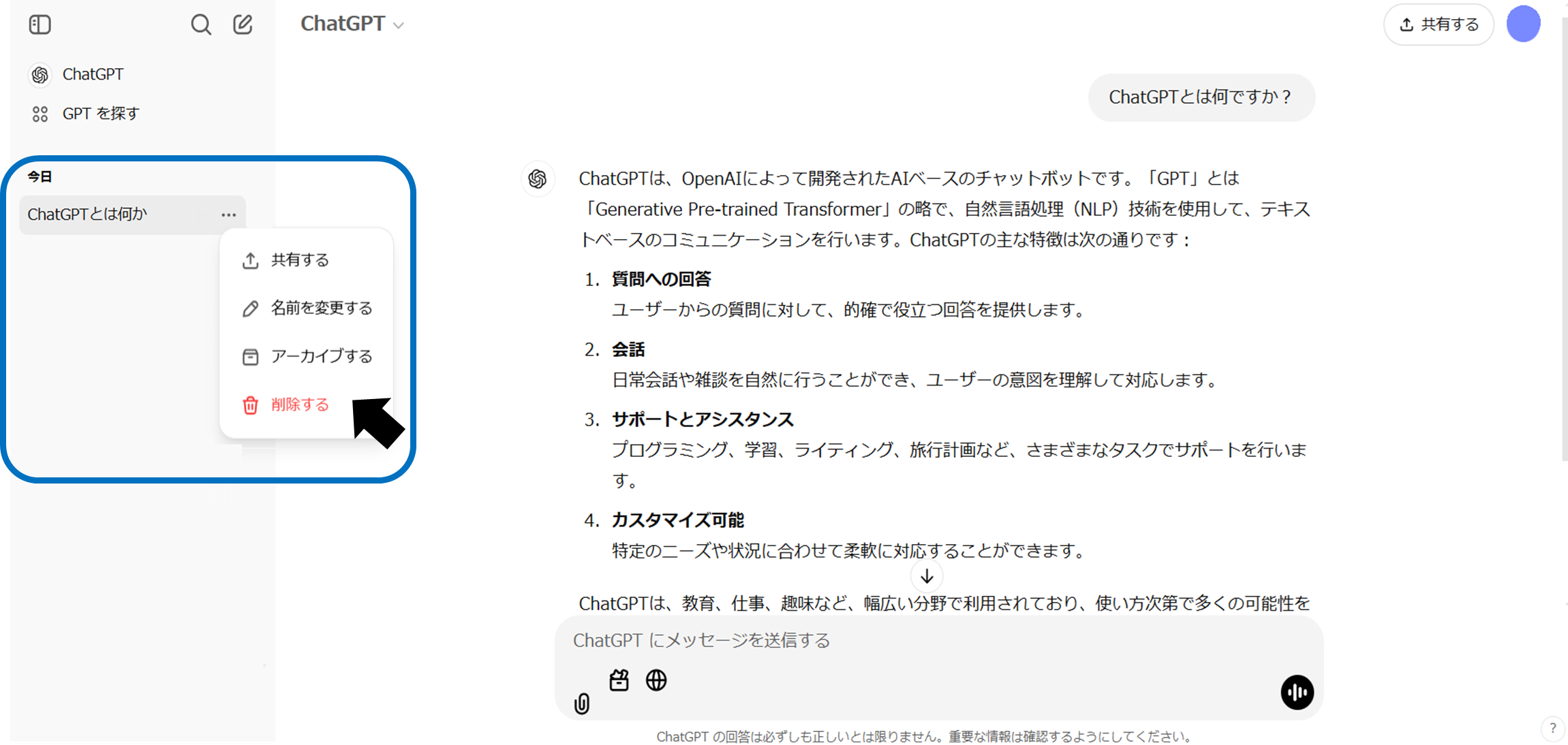
When you delete a chat, any files uploaded to it will also be deleted. After deleting,Permanently erase ChatGPT from the system within 30 daysThis is how it works.
Delete from GPTs settings screen
Open the self-made GPT dashboard "My GPT".

Click “…” for the target GPT and select “Delete GPT”.

If you delete GPT itself, the files uploaded to it will also be deleted at the same time. Same as chat deletion.Permanently removed from the system within 30 dayswill be done.
If you want to delete a specific file, click on the relevant GPT and select "Edit GPT".
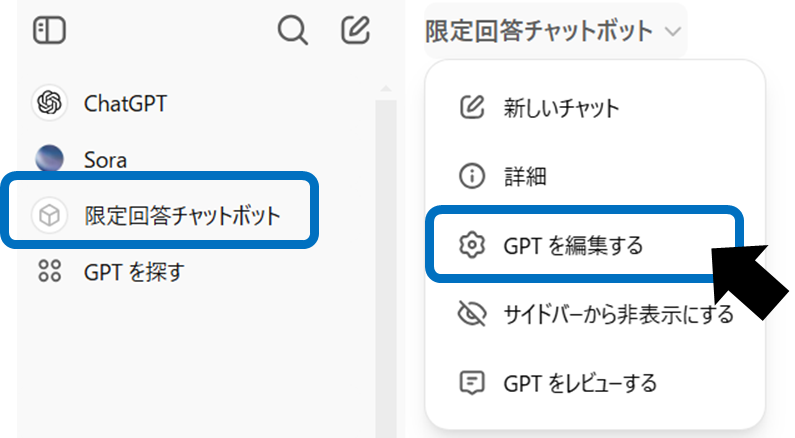
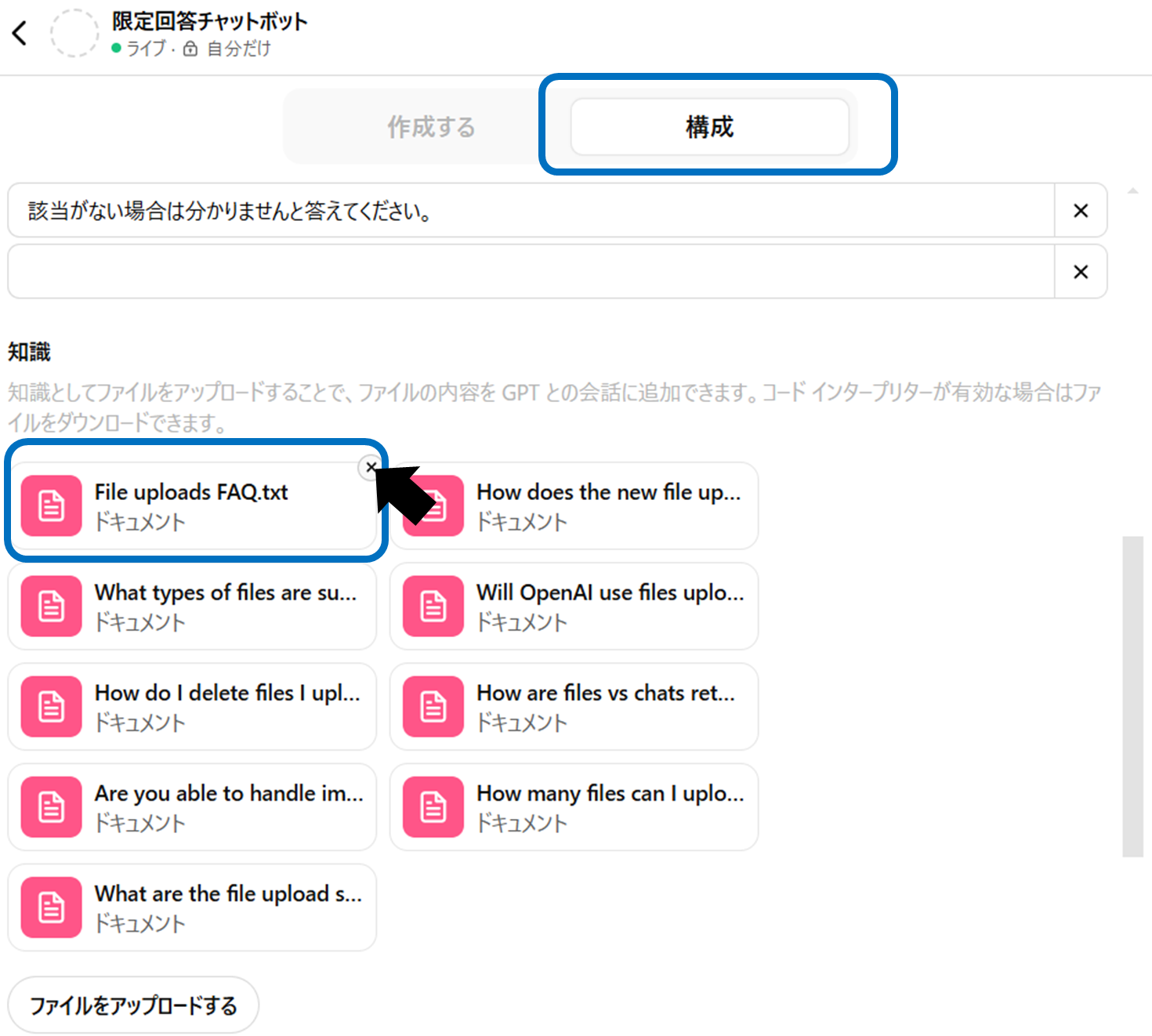
A list of uploaded files will be displayed in the "Knowledge" column of the "Configuration" tab. You can manage your files from here. As well as deleting GPT itself, after the file is deletedPermanently removed from the system within 30 dayswill be done.
Handling and precautions for data after deletion
Even after you delete a file, some information may remain. Here, we will explain the important points to keep in mind after deletion.
Context during chat may remain
Even if you delete a file, the text quoted during the conversation may still be visible in the chat history. However, the file itself cannot be re-downloaded.
Retention from a security/legal perspective
For legal or security reasons, data may not be physically erased immediately after the deletion operation. However, as a general rule, it will be completely deleted within 30 days, and users will no longer be able to view or operate it.
Points of file management
To organize and manage files efficiently, keep the following points in mind.
regular organization
To avoid exceeding the storage limit, delete files as soon as they are no longer needed.
Separate backup of important data
Take measures such as storing important information on local storage or cloud services.
Manage by chat unit
Since files are linked to chats, it may be easier to delete all chats at once.
Understand the usage status of GPTs
If you are operating multiple GPTs, you can check whether there are any unnecessary files by understanding the files being used by each GPT.
summary
In this article, we explained how to delete files uploaded to ChatGPT, precautions, and tips for file management. As the number of unnecessary files increases, not only does the risk of reaching the capacity limit increase, but data management becomes complicated.
Please understand the location and importance of files, delete them safely, and use ChatGPT efficiently.