
The "Share Link" feature is useful when you want to share conversations generated with ChatGPT with other people. Since the content of the conversation can be displayed as is with a single URL, it is used in a variety of situations, such as sharing knowledge with team members and presenting case studies in customer support. However, if you do not properly understand the sharing settings and precautions, there is a risk of unexpected information leaks.
This article outlines the basic operational methods for creating, editing, disabling, confirming, and reporting shared links.
table of contents
- table of contents
- Basic specifications and precautions for shared links
- Steps to create a shared link
- How to check published shared links
- Permission to view and edit shared links
- How to disable/delete shared links
- How to report inappropriate shared links
- Shared link expiration and governance practices
- summary
Basic specifications and precautions for shared links
Shared link is a mechanism that allows you to publish and share ChatGPT conversations as a dedicated URL.is.
OpenAI explains:
"Shared links allow users to generate a unique URL for a ChatGPT conversation." (OpenAI Help Center)
→ “Shared links allow you to generate unique URLs for each ChatGPT conversation.”
Please note the following points.
Anyone can view
Anyone who knows the URL can view the content without an OpenAI account.
No confidential information
Never include personal or sensitive data, as everyone can see it.
Publishing to search engines
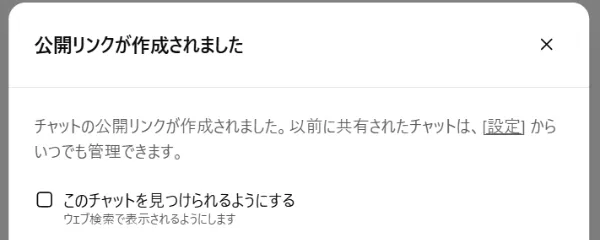
Links may be indexed by search engines depending on your settings when you create them.Enabling the 'Publish to search engines' option will show the link in search resultsPossibly. If it's published by mistake, you can unpublish it by turning off the option when resharing or by deleting and regenerating the link.
If the index remains, consider requesting the search engine to delete its cache. In addition,Links are private by defaultHowever, you need to be careful about setting mistakes.
Steps to create a shared link
The steps to create a link on ChatGPT are as follows.
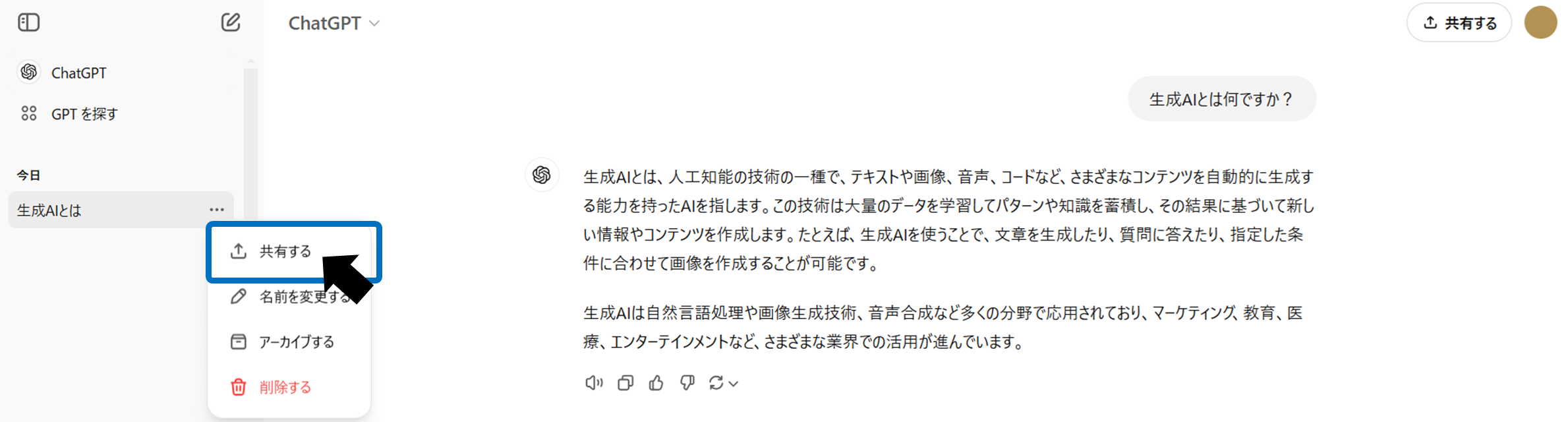
Open any conversation thread and click "Share" in the top right corner.
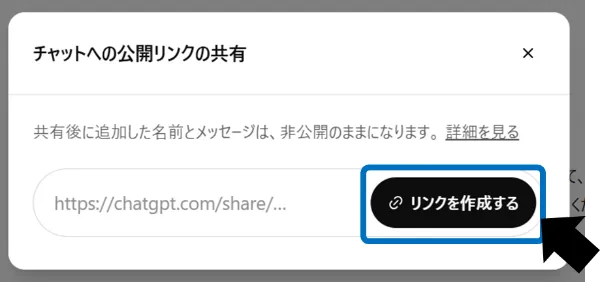
Check the content on the preview screen and generate a link by clicking "Create link".
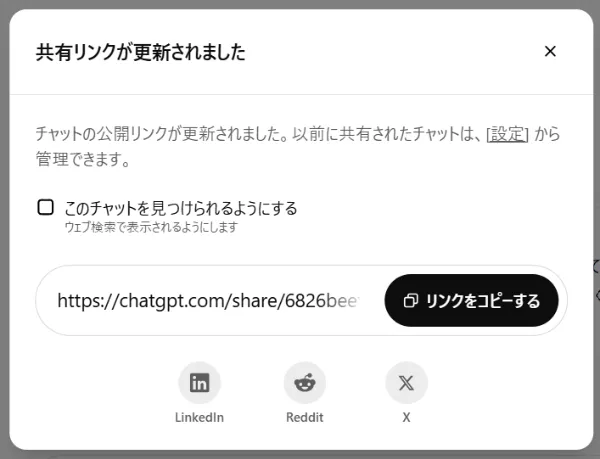
The link has been successfully generated. If you want to copy the link, click Copy link. *You can also turn on/off the "Publish to search engines" option on this screen.
How to check published shared links
You can check the list of shared links you have created by following the steps below.
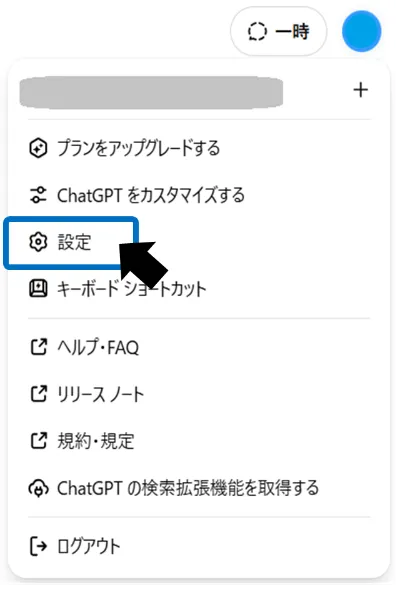
Click your profile icon in the bottom left, then click Settings.
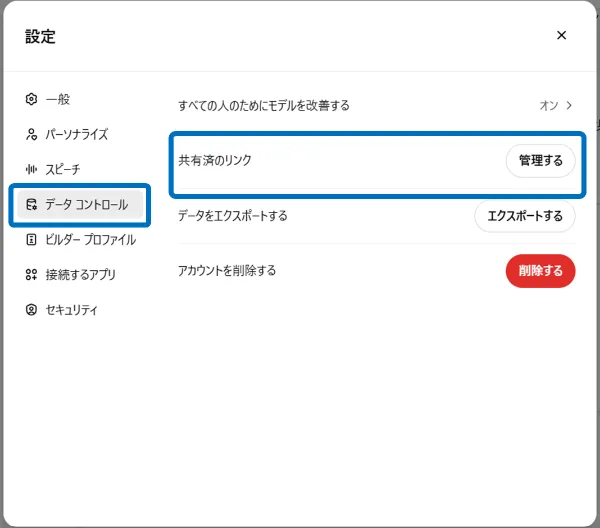
Click "Manage" under "Shared Links" under "Data Control". From here, you can check individual links and delete them all at once.
Permission to view and edit shared links
Easily share your conversations with others using shared links. However, there are some restrictions on link permission settings.
View only, cannot edit
Recipients of the shared link can “view” the conversation, but they cannot meet immediately.You cannot add to the story or reply to it.(read only).
Copy link functionality not provided
One-click copy to recipient account is not available.If you want to reuse the content, copy and paste it manuallyThere is a need.
Only the poster can edit metadata
Only the person who issued the link can change the title or update anonymous settings.can be done.
By understanding these specifications, you can prevent trouble and incorrect operations when using links, and share information more safely.
How to disable/delete shared links
Before disabling or deleting shared links that are no longer needed, be sure to check the appropriate steps. If you disable a shared link, the content will no longer be displayed when you open the URL.
Deleting individual links
Click the trash can icon from the "..." menu in the upper right corner of the conversation.
Bulk deletion
Select and delete multiple links from the shared link list screen.
Delete entire conversation
Deleting a conversation thread automatically disables the associated shared link.
How to report inappropriate shared links
If you find that an externally shared link contains inappropriate content, you can report it by following the steps below. It is also effective when there is a risk of accidental sharing or copyright infringement.
link at the bottom of the page“Report Content”Click.
Fill out the form and send (no account required).
Shared link expiration and governance practices
Governance of shared links is an important initiative in strengthening information security.In particular, link expiration dates and operational rules are essential to prevent information leaks and risks.. As an official specification, there is no automatic expiration date set for shared links.Governance must be carried out independently by the user organization.
periodic inventory
By exporting a list of shared links monthly and disabling links that have not been accessed for more than 30 days, you reduce the risk of leaving old links behind.
Link publication policy
Prevent unintentional information leaks by clearly stating in company rules that ``publishing is prohibited if it contains confidential information'' and ``the public setting is always off''.
limited regeneration
Even if long-term sharing is required, the risk of old URLs remaining externally is eliminated by regenerating them every 90 days and deleting old links.
By regularly reviewing and improving these measures, it is possible to build a more robust security system.
summary
Shared links are a convenient feature that allows you to easily share ChatGPT conversations, but if used incorrectly there is a risk of information leaks. Make sure to manage your shared links regularly by checking the list of shared links and promptly deleting unnecessary links.